
2025 is here and we’re kicking off the new year with a series of releases (get ready for it)! This week we’re excited to announce Teams, a powerful feature designed to streamline the way teams are managed inside Optimal, across GitHub and Jira. Let’s take a look.
Why Teams is important
The Teams feature integrates with your existing workflows by converting GitHub and Jira teams and members into Optimal teams and members, allowing for more efficient team management.
We believe that Teams is the core building block when it comes to evaluating productivity – it facilitates key Insights views such as PR cycle time, Activity, etc. The GitHub-Jira-Optimal integration reconciles the data between your source control and project management, allowing you to get the full picture and understand the dynamics of different team structures and workflows.
How it works
Once synced with GitHub and Jira, Optimal AI will automatically import existing GitHub and Jira teams. Once imported, users can be added, linked, or managed directly through the Settings page.

Add/Delete a member
If you have an existing org within Optimal Insights, all of your previous Github and Jira teams/members have been imported and converted to Optimal teams/members.
On the Members tab, you can add users by sending them the invite link. After they have signed up with GitHub you can now add them to teams using the Add Members button. To delete users, simply click on the trash can next to their name.
Please note that users can only belong to one organization at a time.
Link a member
With Teams, you now can link members to their matching GitHub and Jira accounts. Simply navigate to their name and click on either the Github icon or the Jira icon to search for their handles. Upon completion, the matching GitHub and Jira accounts will be combined into 1 Optimal user, with the Github and Jira icons lit up next to their name.

Create/Delete teams
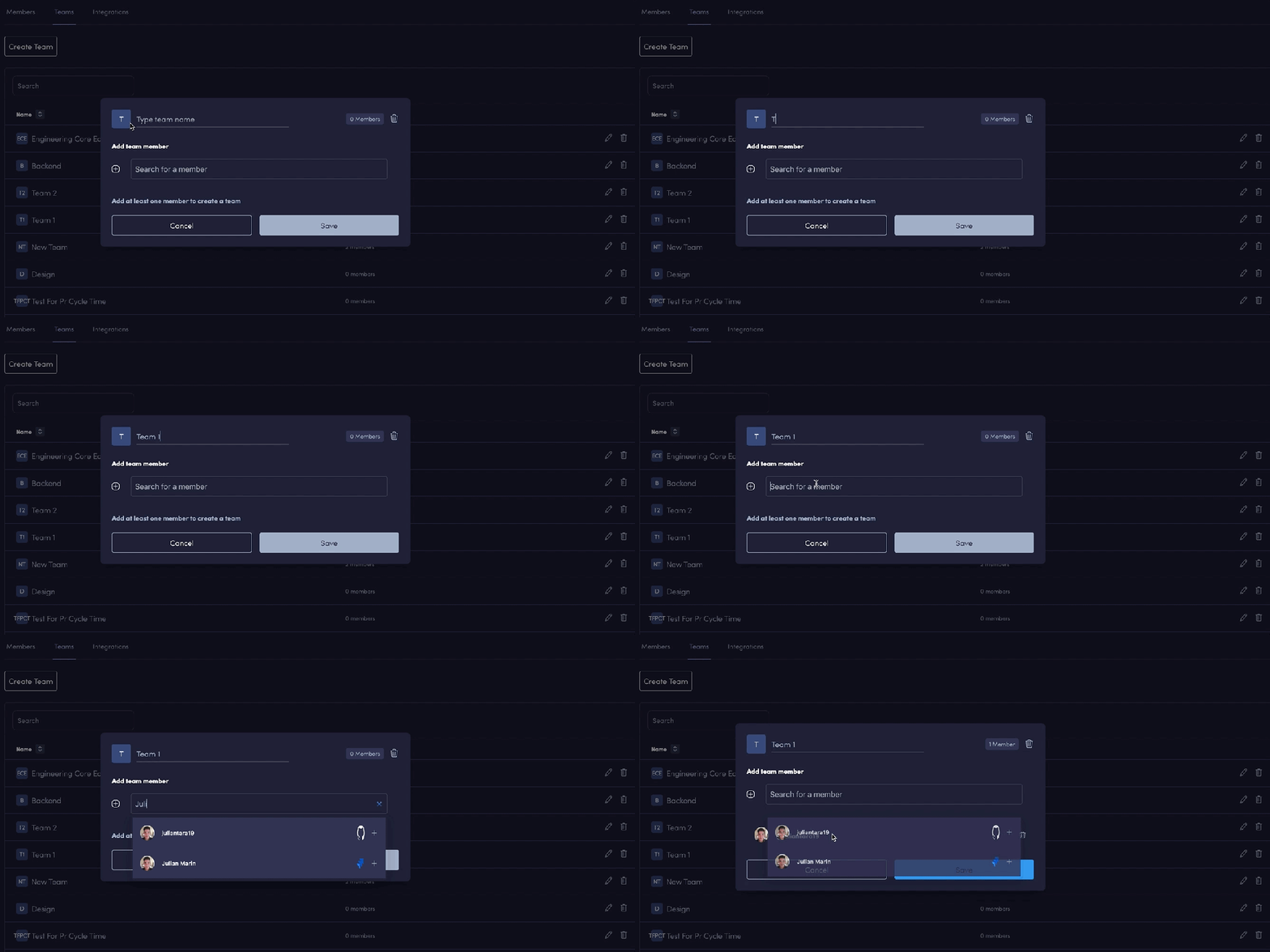
On the Teams tab, you can also create new teams as well as add users to them. Note that your old teams were imported and converted to Optimal teams. To create a team, click on the Create team button, type a name for the team, and then add the users you want in it. Then click Save. This will create your new team.
You can also edit the team and add members to it by clicking on the pencil icon. If you wish to delete a team, simply click on the trash can next to the name.
Simplifying team management
This feature is designed to empower project managers, team leads, or anyone who manages a team across platforms such as GitHub and Jira. With Teams all team management tasks can be done from one single place, thereby reducing context switching. It also helps maintain consistent team structures across the various tools used by your team.
With the Teams feature, team leads can gain visibility into existing team structures, thereby deciding how to best organize their teams to optimize workflow and collaboration.
More exciting features are coming next week (hint: it’s AI). Stay tuned!
Request access today.

Leave a Reply